Cancel Your Free Trial
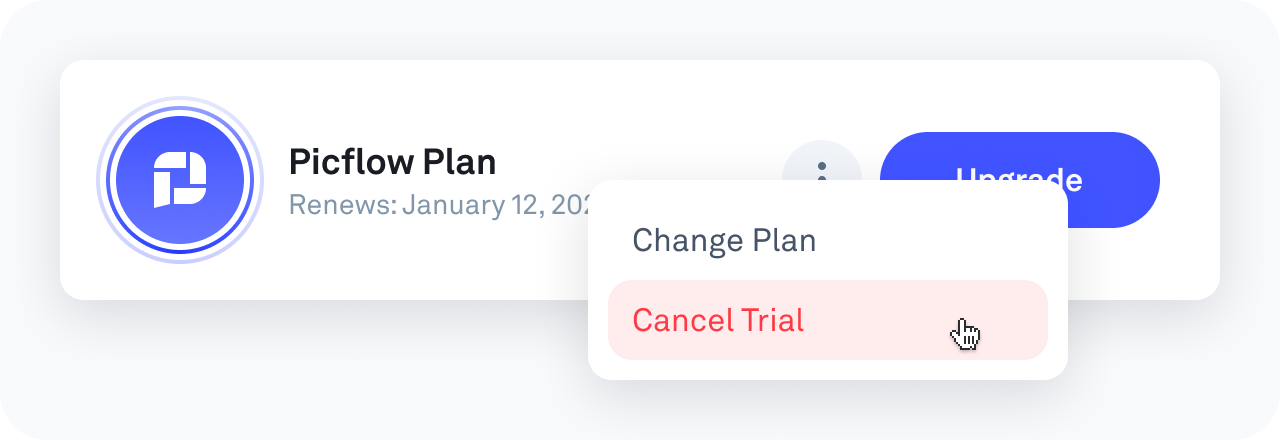
Open Settings → Billing, click the three-dot menu next to your plan and choose Cancel Trial. You aren't charged, and when the trial ends your workspace moves to Picflow Free.
Only workspace owners and admins can change billing. To cancel a paid subscription instead, see Cancel your subscription.
Cancel Your Trial
Go to Settings → Billing.
Click the three-dot menu next to your plan and select Cancel Trial.
Picflow may first ask Extend Instead? Choose Yes and Extend to add another week of trial. Choose No to continue.
Choose your main reason and add feedback.
On Confirm Cancellation, click Cancel Trial.
You are not charged during a trial. When the trial ends, you move to Picflow Free. Free includes 2 GB of storage and one member, so content over 2 GB has to be deleted by then and can't be recovered. You also lose your current price and any discounts.
Change Your Mind
You can re-activate in the same place. While a cancellation is scheduled, click Re-Activate next to your plan in Settings → Billing. If you have no valid card on file, Picflow asks you to add one first.
Frequently Asked Questions
Will I be charged if I cancel my trial?
Will I be charged if I cancel my trial?
No. You are not charged during a trial.
Can I get more time instead of cancelling?
Can I get more time instead of cancelling?
Sometimes. Picflow may offer Extend Instead? at the start of the cancel flow, which adds another week. The offer isn't shown if your trial was changed recently.
What happens to my galleries after the trial?
What happens to my galleries after the trial?
The workspace moves to Picflow Free. If you use more than 2 GB, delete galleries before the trial ends. Items in Trash don't count. See Cancel your subscription for the Free-plan checks.
I don't see Cancel Trial. Why?
I don't see Cancel Trial. Why?
Only workspace owners and admins can change billing. Ask an owner or admin, or contact support via the in-app chat.
Was this helpful?
Still need help? Share an idea