Two-Factor Authentication (2FA)
2FA asks for a six-digit code from an authenticator app when you sign in. Turn it on for your own account, use backup codes, and let workspace admins require it for everyone in the workspace.
Turn On 2FA for Your Account
Install an authenticator app on your phone, for example Google Authenticator, Microsoft Authenticator, or Authy.
Go to Settings → Profile.
Under Account Access, find Two-Factor Auth and click Enable.
In Add Authenticator, scan the QR code with your app.
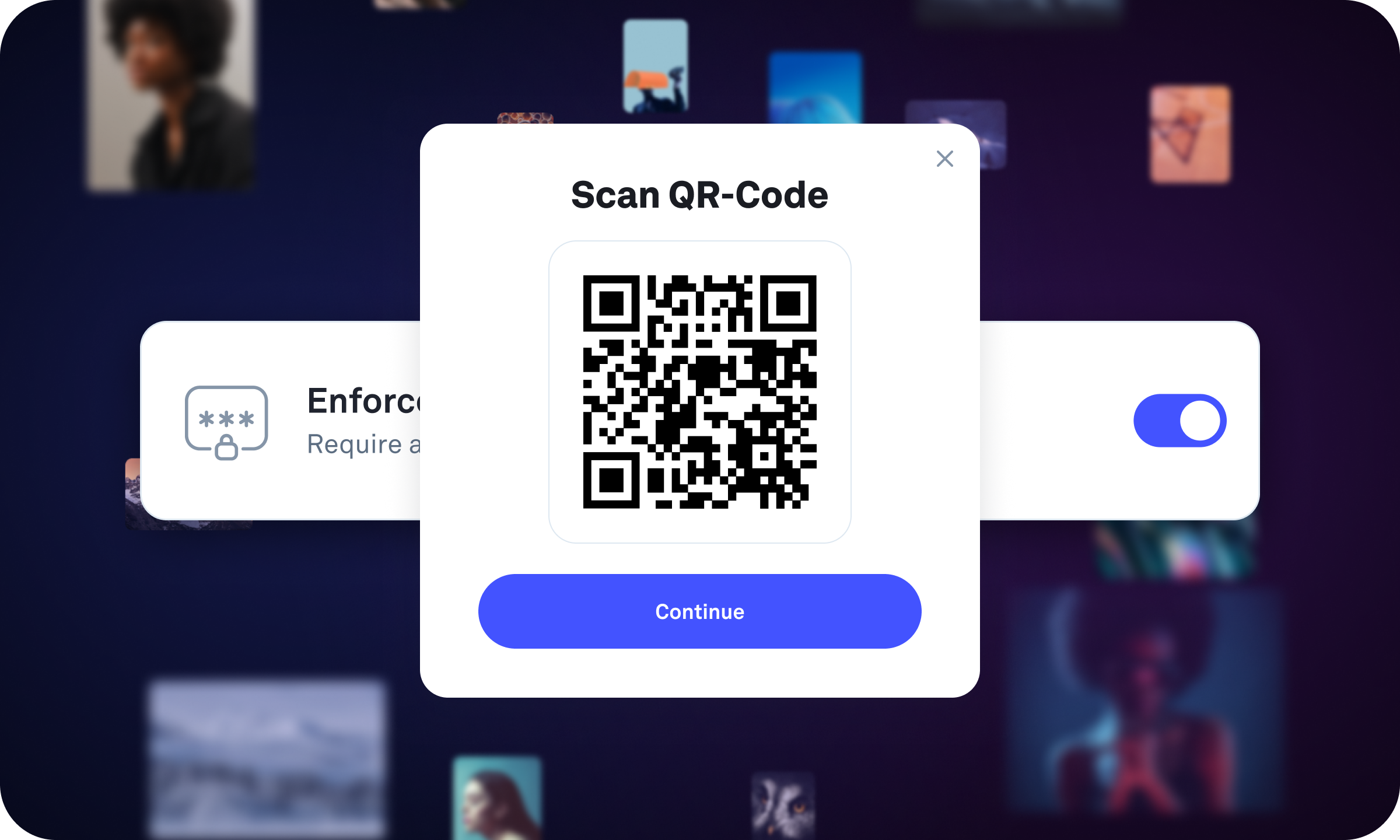
In Add Code, enter the six-digit code your app shows.
In Backup Codes, click Copy Codes and store them somewhere safe.
Picflow may first ask you to confirm it's you with a code sent to your email.
Sign In With 2FA
After your usual sign-in, enter the code from your authenticator app. If you lost access to the app, use a backup code instead. Each backup code works once.
Get New Backup Codes or Turn 2FA Off
In Settings → Profile, click the three-dot menu on the Two-Factor Auth row:
Regenerate Backup Codes creates a new set.
Remove Authenticator turns 2FA off. Confirm in Remove 2FA. Sign-in no longer asks for a code.
Require 2FA for Your Workspace
Paid Feature: Requires Picflow Enterprise.
Only workspace owners and admins can require 2FA for all members and external collaborators.
Turn on 2FA for your own account first (see above).
Go to Settings → General.
Under Security, turn on Enforce MFA.
If you haven't set up 2FA yourself, Picflow shows 2FA Required and takes you to set it up first.
Once enforced, people without 2FA see 2FA Required: "This workspace enforces two-factor authentication for all users." They click Enable 2FA and follow the steps above.
Using single sign-on? See Single sign-on (SSO).
Was this helpful?
Still need help? Share an idea