Share a Folder
Open a folder's Share dialog to copy its link and invite people. Anyone with the link, or an invited person, can open the galleries in the folder, so you can share a group of galleries with one link.
Open the Share Dialog
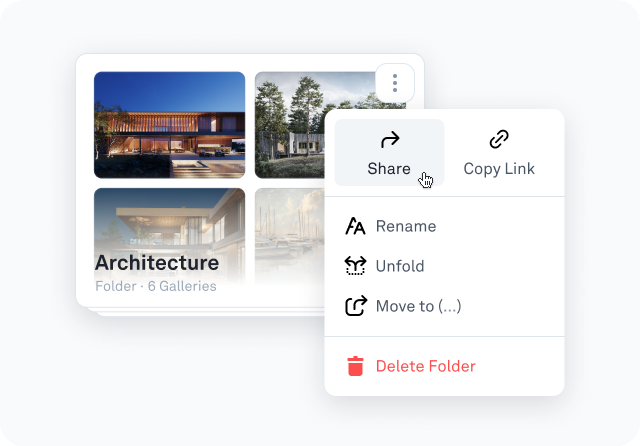
On the dashboard, click the three-dot menu on a folder.
Choose Share. The Share Folder dialog opens.
To create a folder first, see Create and manage folders.
Copy the Folder Link
In Share Folder, click Direct Link.
Click Copy.
To change the end of the link, click it and type a new name. If the name is taken, you see This link already exists!
Set Who Can Open the Link
In Direct Link, open Visibility and choose:
Anyone with the link can access
Only invited people can access
With Only invited people can access, the link is disabled and Share Folder shows Public link access is disabled.
Sort Galleries in the Folder
With link access on, choose Sorting in Direct Link to set the order of galleries visitors see: Name, Date Updated or Date Created.
Invite People
In Share Folder, enter an email address in Add Collaborators....
Choose what the person can do: Can view and give feedback, Can only view galleries or Can edit, upload and delete.
Optional: turn on Notify People and write a message.
Click Send Invite.
People new to Picflow are invited to create an account. To change or remove someone's access later, use their entry in the list.
Share the Link
With link access on, the bottom of the dialog has Copy Link and Email under Share Link.
Was this helpful?
Still need help? Share an idea