Video in Galleries
Upload a video like any other file. Picflow processes it for streaming, and reviewers can play it, change speed and leave comments at an exact moment. Video needs Plus and above.
Paid Feature: Requires Picflow Plus or above.
Plus plays Full HD. Pro and above play 4K HDR.
Upload
Add video to a gallery by drag and drop or Select Source. See Upload media and files.
Supported extensions: MP4, MOV, M4V, AVI, WebM, MKV, WMV, ASF, FLV, F4V, OGV, 3GP, 3G2, MXF, HEVC. The file size limit is 100 GB. See Supported file formats and limits.
Processing Credits
Processing a video uses workflow credits. The amount depends on the length and resolution of the video. When credits run out, uploads fail with Credit limit reached and an Out of Credits dialog appears. See Workflow credits.
Play
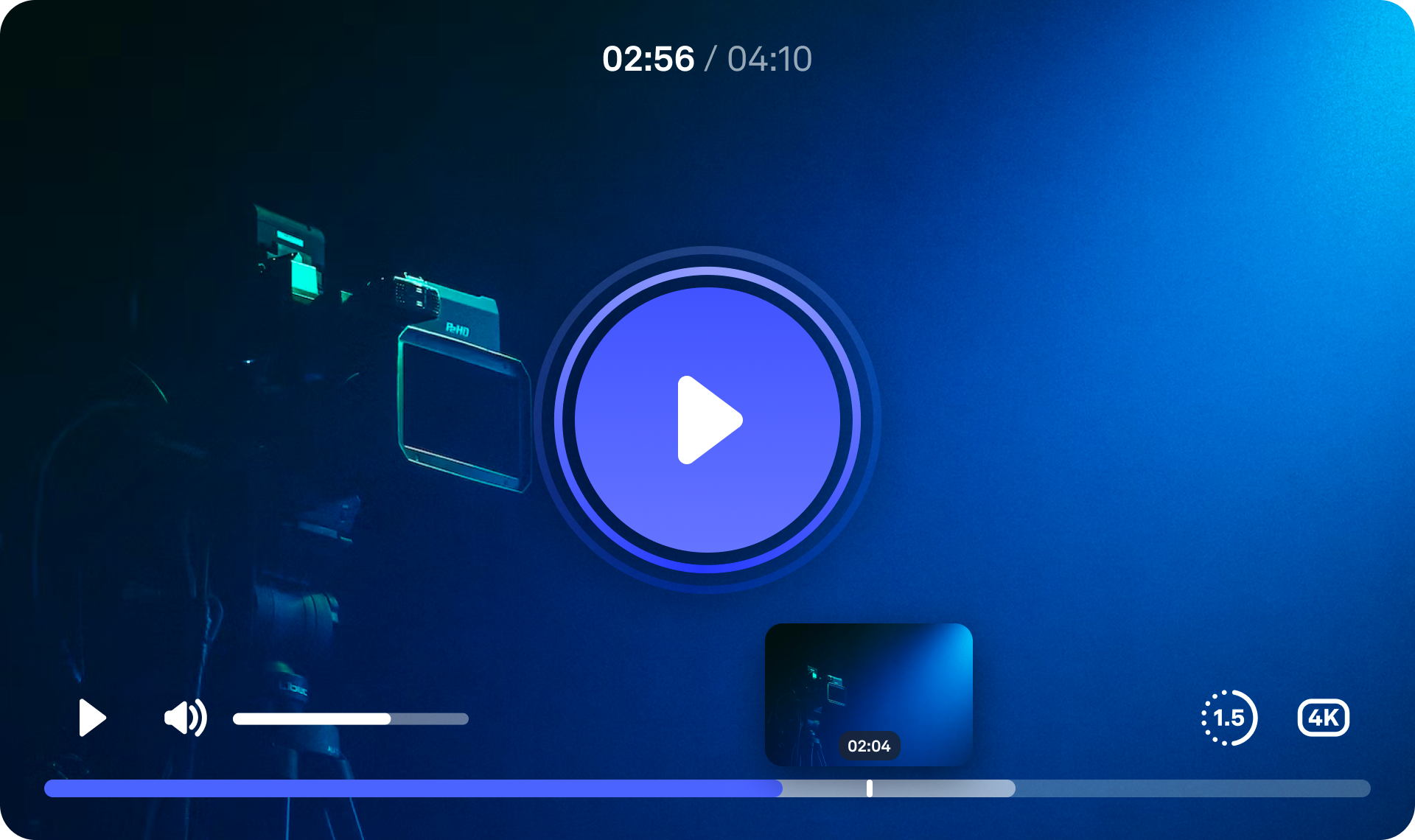
The video player has controls for:
Play and Pause, Mute, and fullscreen.
Playback Speed: 0.2x, 0.5x, 0.8x, normal, 1.2x, 1.5x and 2x.
Quality: the resolutions available for the video.
Previous frame and Next frame to step through the video.
Time Format to change how time is shown.
Shortcuts: Space plays and pauses, M mutes, S changes speed, ← / → skip 5 seconds, ⌘ + ← / ⌘ + → step one frame. See Keyboard shortcuts.
Comment on a Moment
Open the video and pause on the moment you want to discuss.
Press C, place your comment and write it.
The comment is linked to that position in the video. To draw on the frame as well, click Draw in the comment field. See Annotations.
Preview Image and Cover
Change Preview in the asset menu lets you upload your own preview image for a video.
Galleries can use a video as the cover.
If your plan doesn't include one of these, an upgrade badge appears next to it.
Downloads
Reviewers can download videos when downloads are on. See Image and gallery downloads.
Was this helpful?
Still need help? Share an idea