Create and Manage Folders
Folders group galleries on your dashboard. Nest folders, share a folder with one link, rename it, and move or delete a folder with all its galleries.
Create a Folder
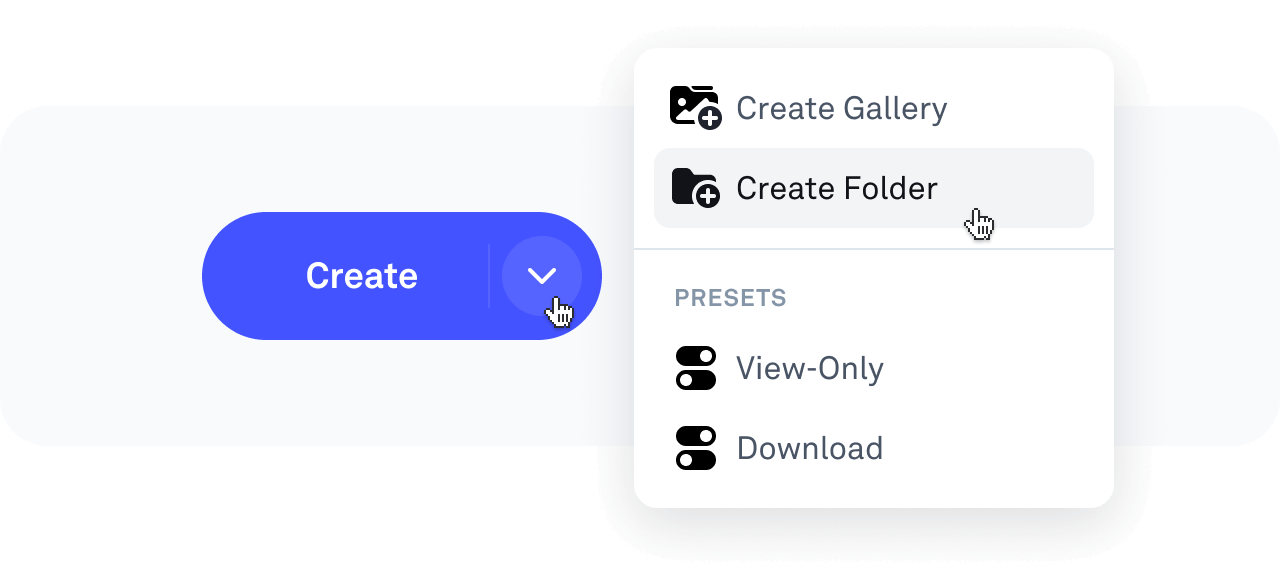
On the dashboard, click Create and choose Create Folder. You can also click Create Folder... next to Folders in the sidebar.
Enter a Folder name and click Create Folder.
To create a folder inside another folder, open the folder's three-dot menu and choose New Subfolder. You can nest folders on several levels.
You can also drag one gallery onto another to create a folder.
Manage a Folder
Click the three-dot menu on a folder:
Delete a Folder
Open the folder's three-dot menu and choose Delete Folder.
Confirm.
Deleting a folder deletes every gallery and asset inside it. They go to the Trash and can be restored for 14 days. See Trash bin.
Upload Folders From Your Computer
When you drop folders into a gallery, Picflow asks what to do with the files in them. Choose one of:
Skip files in folders
Upload all files to this gallery
Create a sub-gallery for each folder
Picflow allows one sub-gallery level. See Gallery sections and Upload media and files.
Was this helpful?
Still need help? Share an idea