Upload From Dropbox, Google Drive and Box
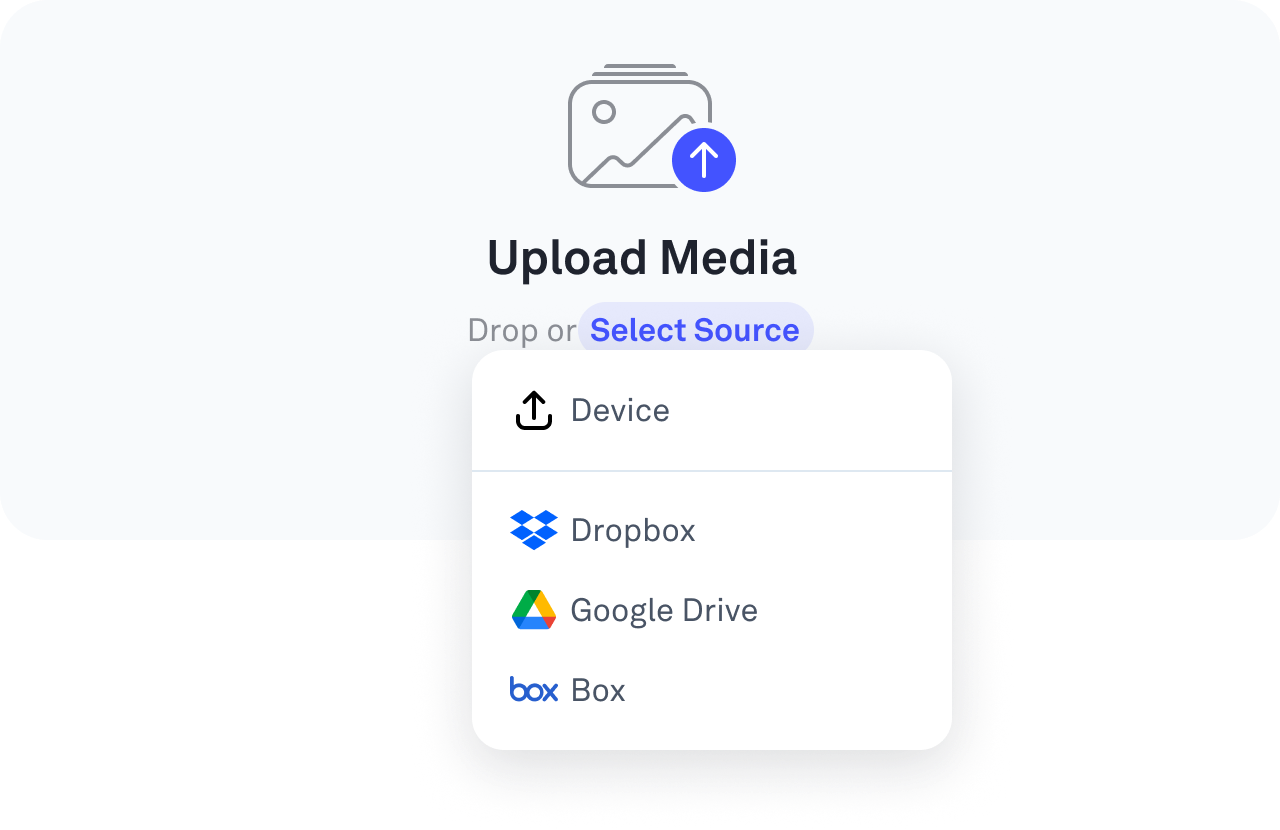
Click Select Source in a gallery, choose Dropbox, Google Drive or Box, and pick your files to add them straight to the gallery. Available on Plus and above, and not in the Picflow iOS app.
Paid Feature: Requires Picflow Plus or above. Not available in the iOS app.
Add Files From a Cloud Source
Open a gallery and go to a media section. You can use a new or an existing gallery.
Click Select Source, or hover the section and click the upload icon (Upload Media).
Choose Dropbox, Google Drive or Box.
Sign in and authorize Picflow if asked. For Box, a window shows Authentication. If it doesn't start, click Restart.
Select your files and confirm.
The files are added to the gallery like any other upload. File types and size limits are the same. See Supported file formats and limits.
On the Free plan, the provider options show an upgrade badge. Clicking one opens the upgrade dialog. See picflow.com/pricing.
For uploads from your computer, see Upload media and files.
Was this helpful?
Still need help? Share an idea