Public Profile
The public profile is a page that lists the galleries you choose, with your workspace logo and contact details. Visitors see only the galleries you add, and you control their order.
Open the Public Profile Settings
Go to Settings → Workspace and click Public Galleries. The page is titled Public Profile.
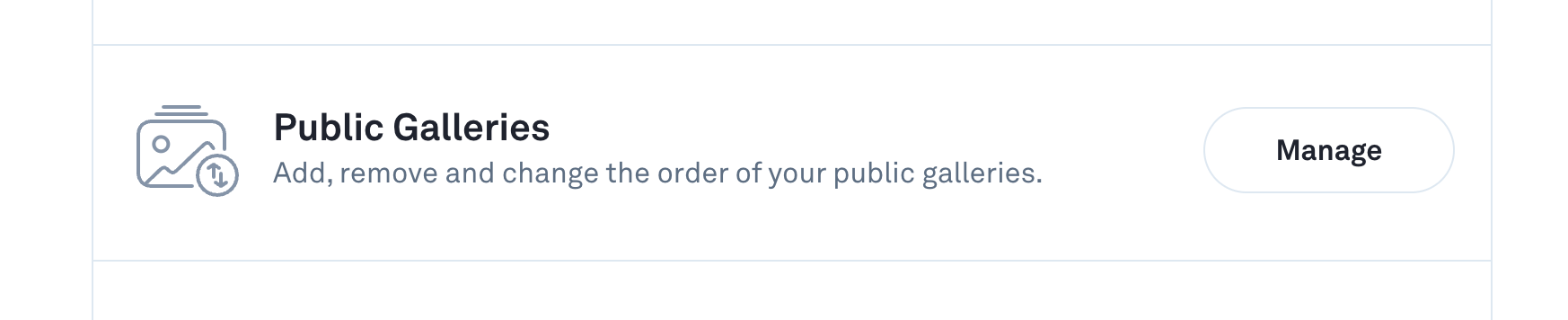
If your workspace blocks public link access, Public Galleries is disabled.
Add a Gallery to Your Profile
On Public Profile, click Add Gallery.
In Add to Profile, click Add next to a gallery.
If the gallery's link access was off, adding it turns link access on, so people can view and give feedback.
You can also add a gallery from its own Share dialog. Open Visibility and choose Public. The description reads Link is visible on your profile.
Remove a Gallery From Your Profile
On Public Profile, open the gallery's menu and choose Hide from Profile.
In Add to Profile, click Remove next to a gallery.
The gallery itself is not deleted.
Change the Order
Drag a gallery to a new position to set the order yourself. The sort setting then shows Manual.
To sort automatically instead, click the sort icon and choose Date Created, Name or Date Updated.
Preview Your Profile
Click the eye icon to open your profile in a new tab.
Other Actions
Open a gallery's menu on Public Profile to choose Open Gallery or Gallery Settings.
To set your logo, see Workspace branding. To control who can open a gallery, see Share a gallery.
Was this helpful?
Still need help? Share an idea