Embed Sections
Add an Embedded section to show a video, map, 3D tour or other third-party content in a gallery. Paste a link or an iframe embed code.
Paid Feature: Requires Picflow Plus or above.

Add an Embed
Open the gallery and switch to Layout.
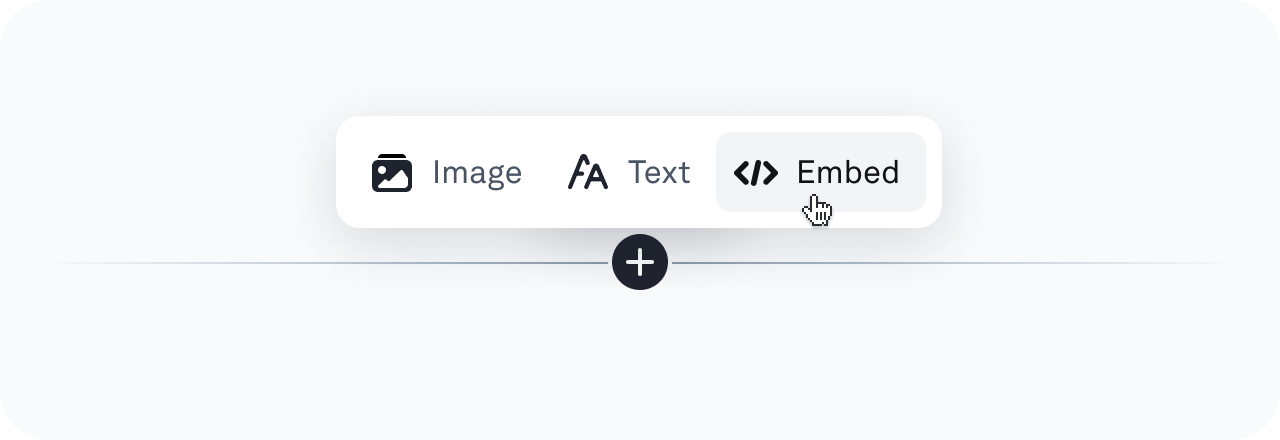
Click the + button (Add a Section) and choose Embedded.
Paste a link or an iframe code into Paste URL or iFrame.
Click Embed.
To replace the content, click Section Settings, click the trash icon next to the link under Embed, and paste a new one.
Supported Platforms
These platforms are recognized when you paste a link: YouTube, Vimeo, Instagram, X, Facebook, SoundCloud, Google Maps, Kuula, Looker Studio, Elfsight and Canva.
Other platforms, such as Matterport, work when you paste their iframe embed code. The code is usually behind a Share or Embed button on the platform.
Embed codes that contain a <script> tag are not supported. Paste the link instead, or the iframe code if the platform offers one.
Set the Aspect Ratio
If the content has no size of its own, open Section Settings and choose Aspect Ratio: 1:1, 3:2 or 2:1. New embeds use 3:2.
Troubleshooting
Missing a platform? Request a feature.
To show a Picflow gallery on your own website instead, see Embed a gallery on your website.
Was this helpful?
Still need help? Share an idea