Invite People to Your Workspace
Owners and Admins invite people by email from People. Invitees join as Members and use one seat each. You can also check your seat count, make someone an Admin and cancel pending invites.
Invite People
Go to People.
Click Invite People in the top right.
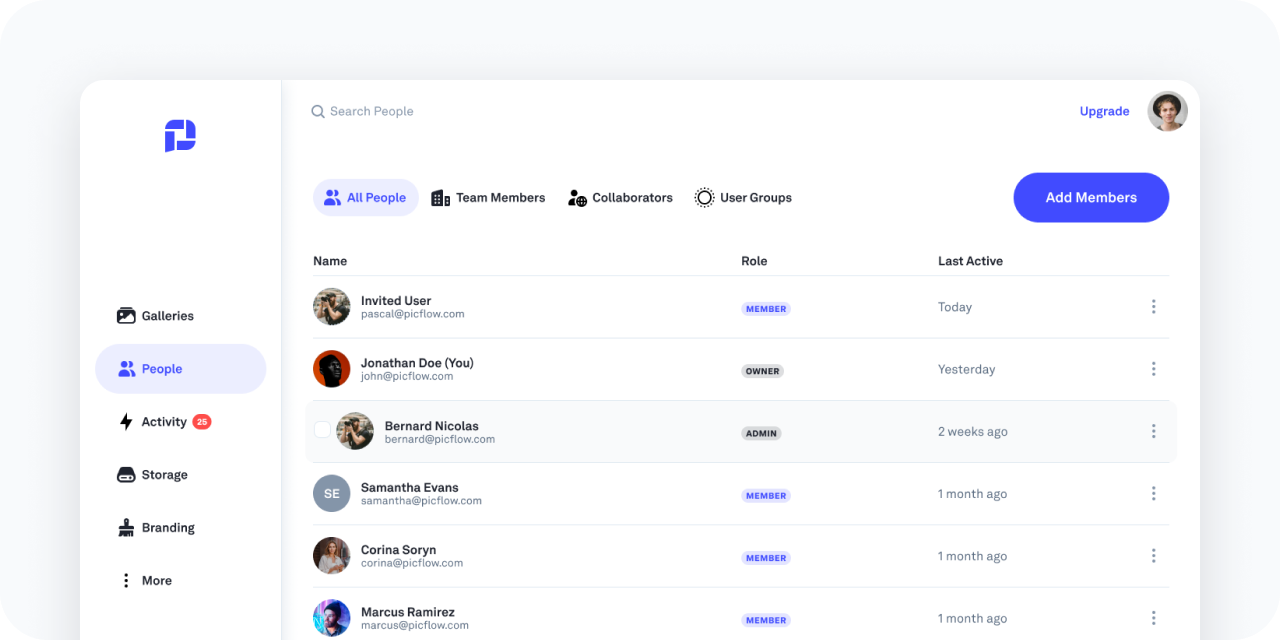
Enter email addresses in the Invite to Team dialog. Separate them with commas, spaces or new lines.
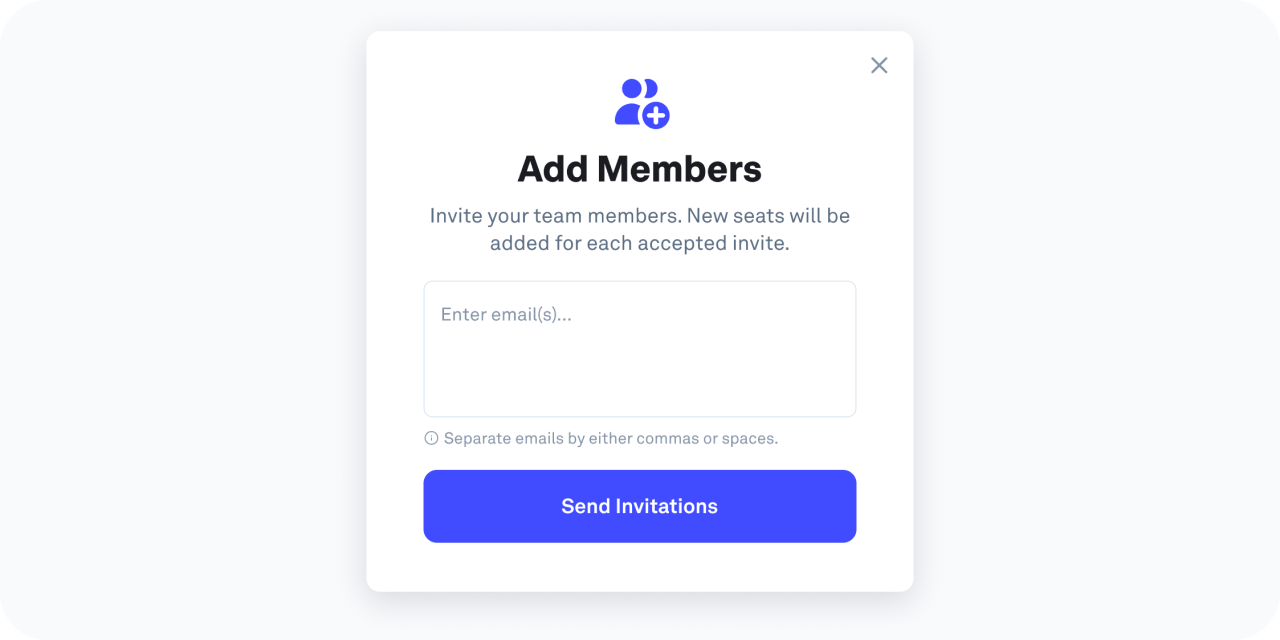
Click Send Invites.
Picflow confirms with "Invitations sent!". Everyone joins as a Member. To make someone an Admin, click ⋮ next to their name in People and choose Admin. See Roles and permissions.
Only Owners and Admins see Invite People.
Seats
Each team member uses a seat. The dialog shows how many seats you have left, including pending invites, and you can't invite more people than that.
If you're out of seats, the dialog shows You've reached your plans seat limit! Click Choose Plan to upgrade. On Enterprise, click Contact us. Where extra seats are available, the dialog shows the price for each additional member, charged when they accept.
Guests and visitors don't use a seat.
Invitation Process
Invitees get an email and can join your team right away. If they don't have a Picflow account yet, they sign up first.
An invite for someone without a Picflow account is valid for 30 days. If they don't accept right away, they get an email reminder on day 3 and day 7. After 30 days the invite expires and disappears from People.
If you invited the wrong person or made a typo, click ⋮ next to the pending invite (marked Pending Invite) and choose Cancel Invitation. If you see "Already on your team" or "Already invited", that email is already in the list.
Colleagues at your company domain can also join without an invite. See Verified domain and join settings.
Invite Guests
You can share galleries with people by email without adding them to your team. They appear as guests in People.
Guests can only access the galleries they're invited to and can't create galleries. They can't see galleries shared with the whole team. If a guest asks to join your team, Owners and Admins are notified and can review the request under Requests.
To share a gallery with someone, see Gallery sharing and permissions. To turn a guest into a member, click ⋮ next to the guest in People and choose Invite to Team. To remove a guest from all galleries, choose Remove.
Invite Visitors
You can also share public galleries with visitors. Visitors don't join your team and don't need a Picflow account to view or review a public gallery.
For the difference between members, guests and visitors, see Visitors, guests and members.
Frequently Asked Questions
My invitee didn't get the email. How can they access my team?
My invitee didn't get the email. How can they access my team?
Ask them to sign up or log in with the email you invited. Your workspace then appears in their workspace switcher and on the Workspaces page.
I was invited to a team but don't see it when I log in. How can I access it?
I was invited to a team but don't see it when I log in. How can I access it?
Find the team on the Workspaces page and switch to it. If it isn't there, make sure you're logged in with the same email address that was invited.
There is no Invite People button on my screen. Why?
There is no Invite People button on my screen. Why?
Only Owners and Admins can invite people. Ask an Admin to invite the person or to change your role.
Can I share galleries with people who don't have a Picflow account?
Can I share galleries with people who don't have a Picflow account?
Was this helpful?
Still need help? Share an idea