Gallery Access and Permissions
A gallery's access has two parts: the Direct Link that anyone with the link can use, and collaborators you add by email. Set link visibility, password and view or review rights, and give each person the access level they need.
Paid Feature: Passwords and visitor identification require Plus or above. User groups require Enterprise.
Each gallery has a Direct Link for anyone you send it to, and collaborators you add one by one. To send a gallery, see Share a gallery.
Open the Share Dialog
Open the gallery.
Click Share.
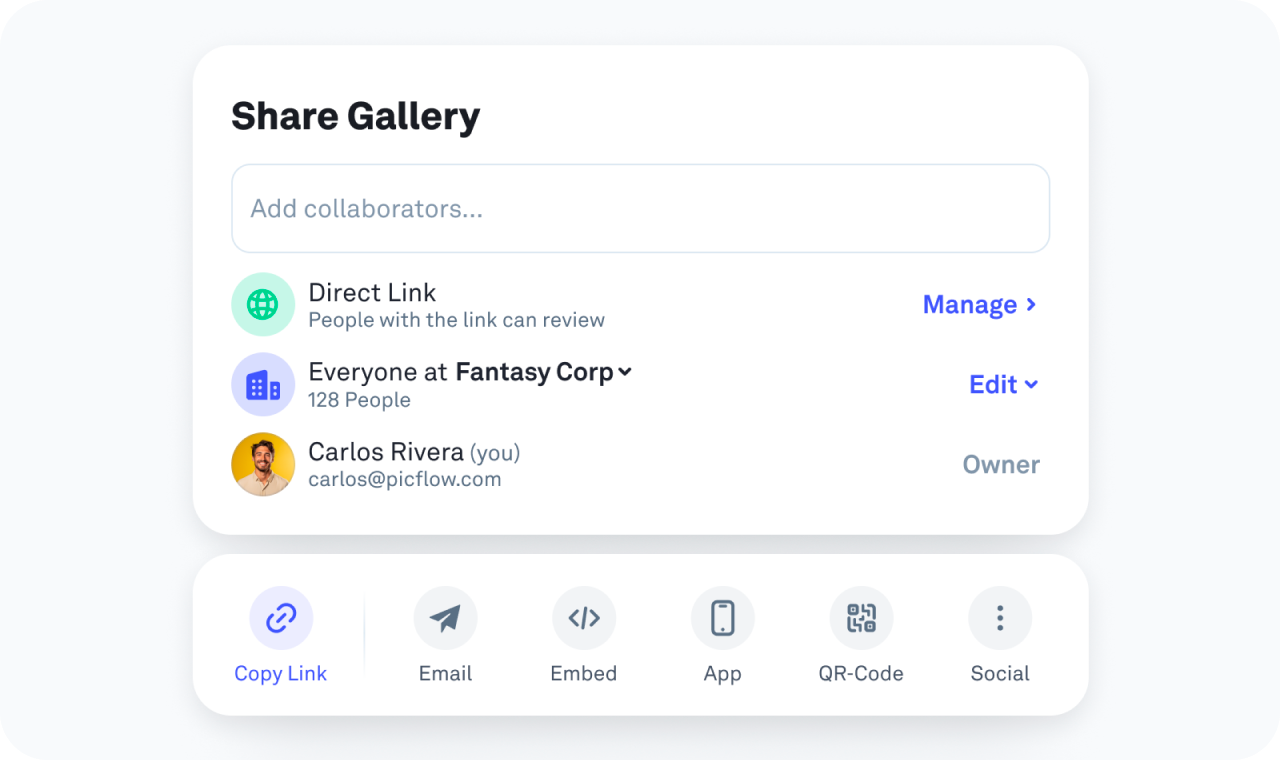
The Share Gallery dialog lists the Direct Link, your team (Everyone at {team}), the owner, and every person you added. You need edit access to the gallery to change anything here.
Sub-galleries show This is a Sub-Gallery and Manage access on the main gallery. Change access on the main gallery.
Gallery Link
You can share a gallery with anyone by sending them its secure link. Visitors who open the link don't need a Picflow account. Click Manage next to Direct Link to change who can use it.
The Direct Link row in the share dialog sums up the result, for example People with the password can review.
Password, Identification and View-only appear only when Visibility is not Private.
Set a Password
Turn on Password. Picflow suggests a random password.
Change it if you like, then click Save.
To copy it later, click the masked password. Click the pencil icon to change it.
Turn Password off to remove it. If your workspace blocks public link access, the link and its settings are disabled.
Collaborators
Add people to control each person's access, or when the gallery is Private. By default, each gallery is visible to all team members. You can hide a gallery from your team and share it with selected people only.
Click Share.
Type an email address in Add Collaborators....
Choose an access level.
Optional: leave Notify People on and add a message.
Click Send Invite (Add Person if Notify People is off).
People new to Picflow are invited to create an account.
Team access: use Everyone at {team} to set one level for your whole team, including No Access.
Team members: set the level for individual members, for example to override the team level for one person.
External guests: invite freelancers and clients by email. Inviting guests is more secure than sharing a link: you manage each person's access individually, and they need a Picflow account.
User groups: assign access to a group of members. Enterprise plans have user groups under People → User Groups.
To change access later, open the dropdown on a person's row. From there you can also click Remove, or Make Owner for a team member. Click Leave on your own row to leave a gallery. Invitations that haven't been accepted show Pending Invite.
For folders, see Sharing folders.
Embed a Gallery
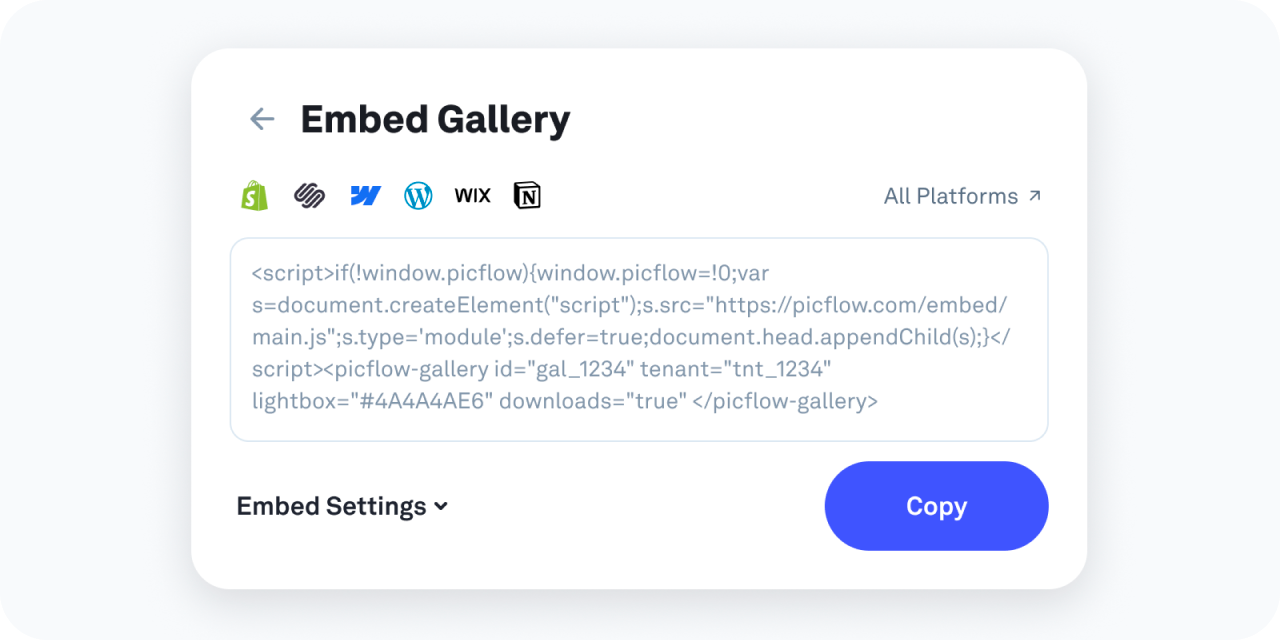
Click Embed in the share dialog to get an embed code for your website. A gallery with a password can't be embedded: remove the password first. See Embed a gallery on your website.
Choose How to Share
Decide how often and how closely you work with someone, then pick the matching method: a link for one-off sharing, a guest invite for occasional collaboration on private galleries, a workspace member for ongoing work. For what visitors, guests and members can each do, see Visitors, guests and members.
Was this helpful?
Still need help? Share an idea