Remove Team Members
Workspace owners and admins remove members, guests and visitors from the People page. The person loses access to the workspace's galleries and has to be invited again to return.
Only workspace owners and admins can remove people. For what each role can do, see Roles and permissions.
Remove a Member
Go to People.
Click ⋮ next to the member and choose Remove.
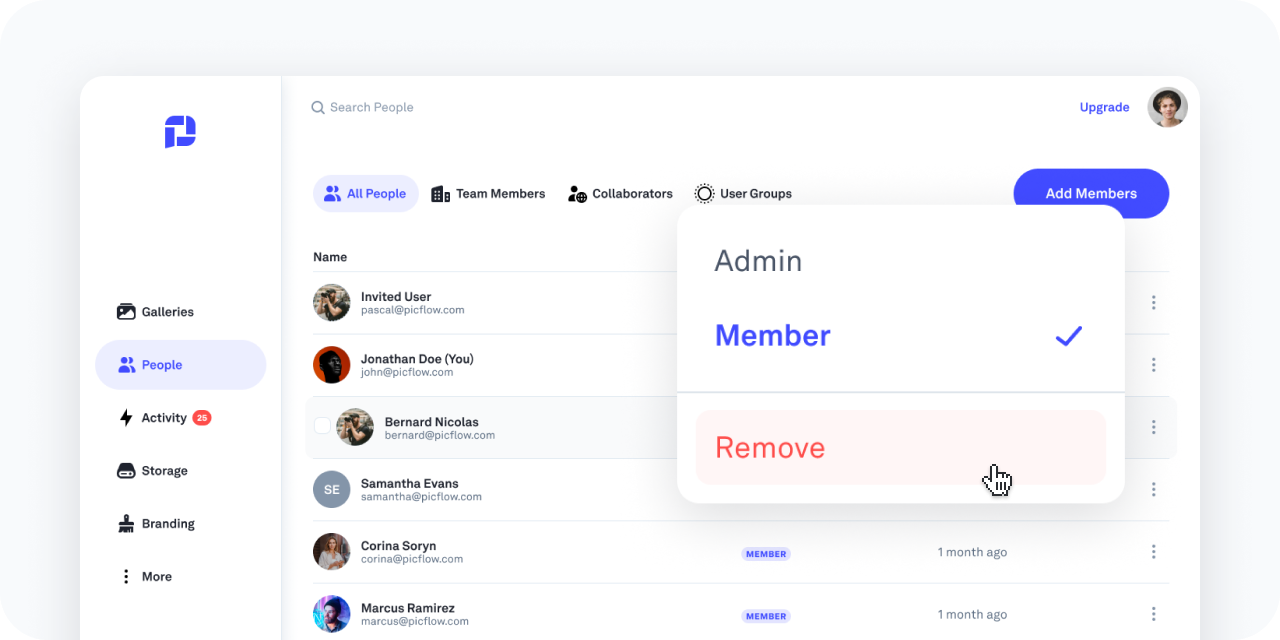
Confirm with Remove from Team.
The person loses access to all galleries in the workspace and has to be invited again to return. If they owned galleries created in the workspace, shared or private, owners and admins still have access to those galleries. You can't remove yourself or the Owner. To leave a workspace yourself, see Leave a workspace.
Remove a Guest or Visitor
Go to People → All People.
Click ⋮ next to the guest and choose Remove, then Remove Guest.
The guest loses access to all galleries they were invited to. Visitors have a Remove option in the same list.
Cancel a Pending Invitation
Click ⋮ next to a Pending Invite and choose Cancel Invitation. See Invite people to your workspace.
Frequently Asked Questions
I don't see the option to remove people. Why?
I don't see the option to remove people. Why?
Only owners and admins can remove people. If you don't see Remove, ask an owner or admin to do it. The People list shows who they are.
Our Picflow admin left the company. How can I remove them?
Our Picflow admin left the company. How can I remove them?
An owner or another admin can remove them from People. The Owner can't be removed. If the Owner is gone, they can transfer ownership to another member. If you can't reach them, contact us through the in-app chat or help@picflow.com to regain control of your workspace.
Was this helpful?
Still need help? Share an idea