Annotations & Markups
Annotations let reviewers draw on photos, videos and documents to show exactly what they mean. The drawing tools, how annotations attach to comments, and how to turn them on.
Draw an Annotation
Annotations are drawings saved together with a comment. They work on photos, videos and documents such as PDFs.
Open an asset and click Add a comment....
Click the brush button below the comment field (tooltip Draw).
Choose a color and a tool. The default is a blue Brush.
Draw on the asset.
Click Send to post the comment with the drawing.
Use Undo and Redo in the toolbar to step back and forward. On phones and small tablets, tap Next when you are done drawing.
On photos and documents you can also press D to start drawing. See Keyboard shortcuts.
Colors: Blue, Green, Yellow and Red.
Annotated comments show a Drawing tag in the thread. For everything else about comments, see Comments and mentions.
Annotate Videos and Documents
Videos: pause on the frame you mean, then start a comment and click Draw. The annotation is saved to that exact frame. When someone opens the comment, the video jumps back to it, and the comment shows a timecode.
Documents: go to the page you mean and draw. The annotation is saved to that page, and opening the comment takes you back to it.
The D shortcut works on photos and documents. On videos, use the Draw button.
Annotation Tools
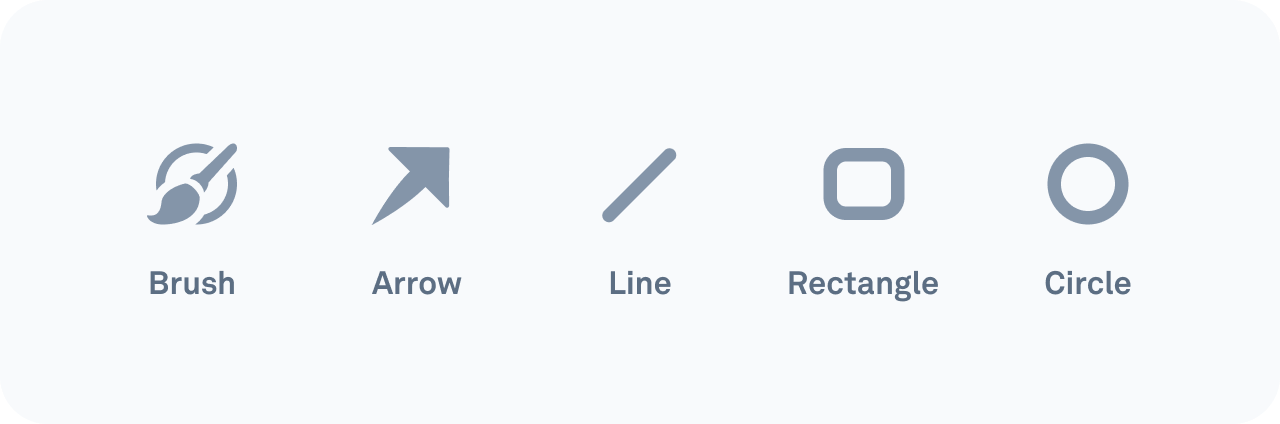
Brush
Draws freehand annotations onto the asset. To illustrate that you love something in a photo, use the brush to show what turned out great.

Arrow
Adds an arrow that points where you want it to. Don't like how something is positioned? An arrow shows exactly where you want it moved to.

Line
Draws a straight line from one point to another. Use a line to mark an important border or edge, for example to show that the image could be cropped differently.

Circle
Draws a circle around an area of the image. Use it to show an area that needs retouching. Have a problem with the lighting? A circle around the bad lighting shows where to brighten the image.

Rectangle
Draws a rectangle around an area. Use it to frame a part of the image, for example a crop or a block of text.
Turn Annotations On
Open the gallery and go to Settings → Collaboration.
Turn on Comments.
Turn on Annotations.
Annotations only appears once Comments is on. New galleries start from your defaults in Settings → Presets. For an overview of all review tools, see Review and feedback options.
Frequently Asked Questions
Why is the Draw button missing?
Why is the Draw button missing?
Check that Comments and Annotations are on in Settings → Collaboration. The button is also not shown for files without a preview, and the person commenting needs review or edit access to the gallery.
Can I draw more than one shape in one annotation?
Can I draw more than one shape in one annotation?
Yes. Switch tools or colors and keep drawing, then send. Use Undo to remove the last shape.
Was this helpful?
Still need help? Share an idea