Capture One integration
Upload selected variants, or a whole session, from Capture One to a Picflow gallery. This isn't a Capture One plugin: the Picflow macOS app controls Capture One on your Mac.
Beta: The Capture One integration is in beta and may change. If something doesn't work as described, tell us through the chat.
This isn't a Capture One plugin. It's the Picflow desktop app for macOS, which controls Capture One on your Mac.

Install
In Picflow, go to Settings → Integrations and click Download on the Capture One card. You can also download the macOS app directly.
Install the app and log in with your Picflow account.
Allow access to Capture One
Do this once. Picflow needs permission to control Capture One.
Open the Picflow app and log in.
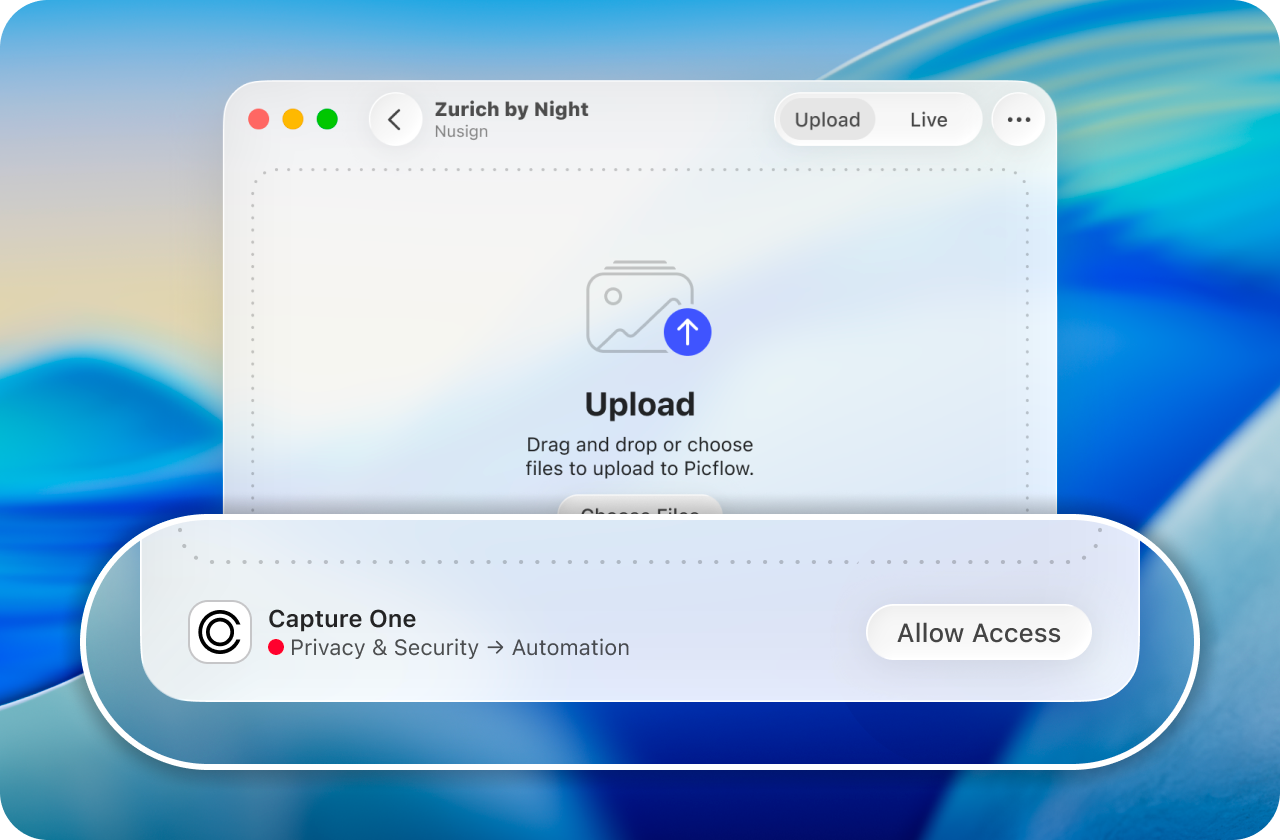
Select a gallery and open the Upload tab. Capture One is listed once it's running.
Click Allow Access.
In the macOS automation dialog, click Allow.
Picflow can then read your current Capture One document (catalog or session) and see which variants you selected.
Upload from Capture One
Choose the gallery you want to upload to in the Picflow app.
Select the variants in Capture One.
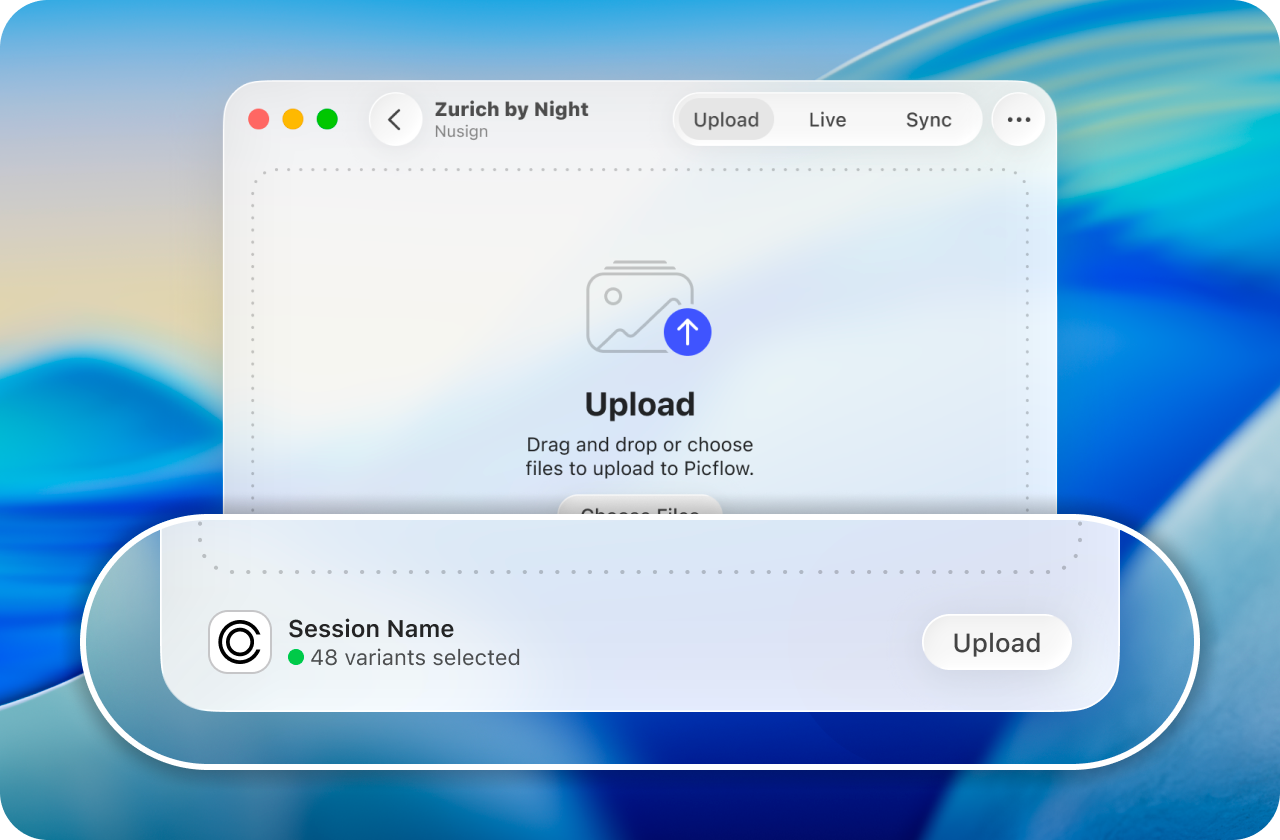
In the Upload tab, Picflow shows how many variants are selected, for example "123 variants selected".
Click Upload.
You can have several Capture One sessions open at once.
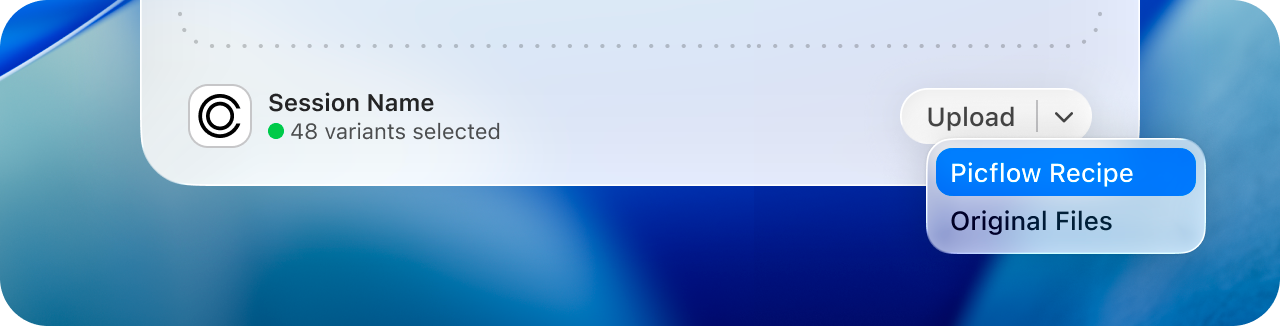
Choose how to upload:
Default Upload (Recommended): exports with the Picflow recipe, so your edits are included.
Upload Originals: uploads the RAW files without exporting.
The Picflow Upload recipe
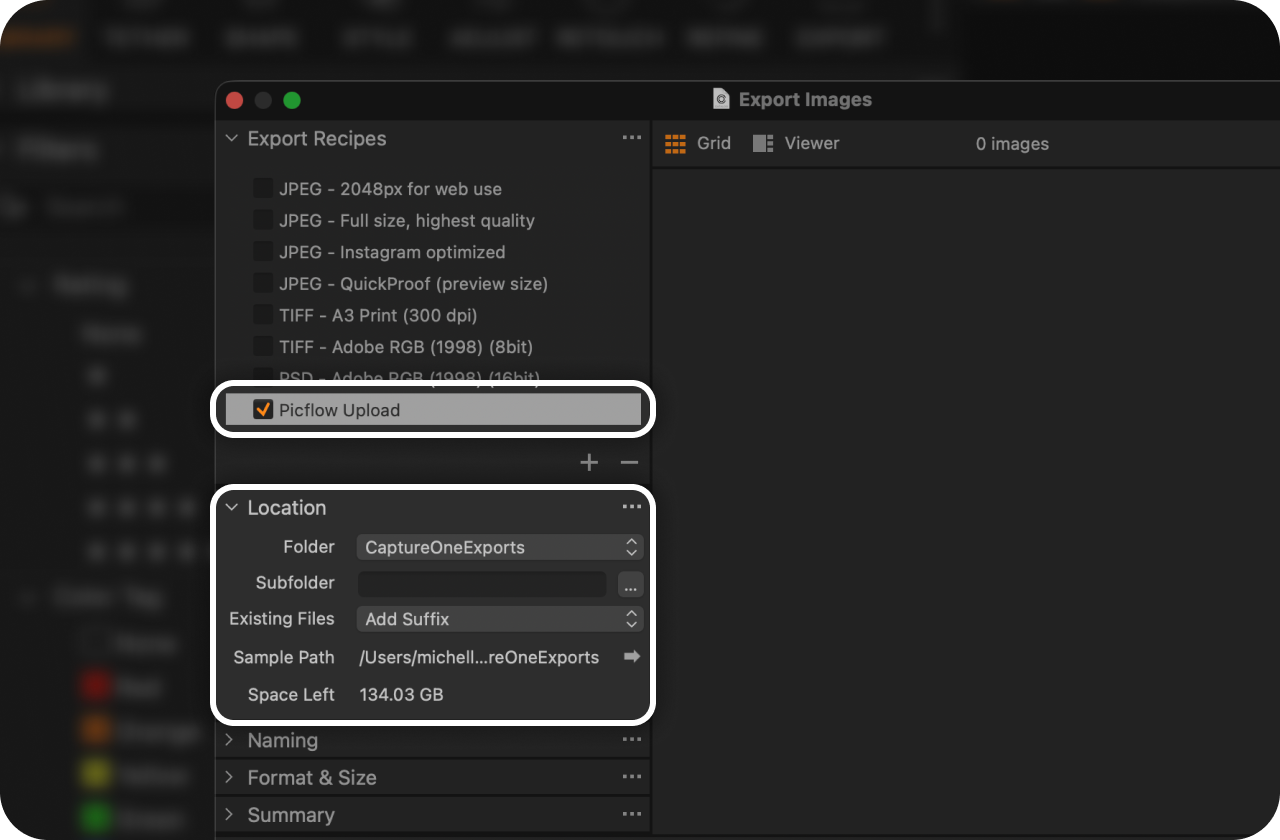
The first time you upload, Picflow creates an export recipe in Capture One called Picflow Upload. It exports to the folder ~/Library/Application Support/Picflow/CaptureOneExports/ as JPEG, 90%, sRGB, and deletes the exports after the upload.
You can change the recipe's format, watermark and size settings.
Don't change the recipe's output location. Picflow reads the exported files from that folder.
Troubleshooting
Picflow isn't allowed to control Capture One
Picflow isn't allowed to control Capture One
Go to Apple menu → System Settings → Privacy & Security → Automation.
Find Picflow and switch on Capture One.
Restart both apps and try again.
Exports fail or files don't appear
Exports fail or files don't appear
Check that the Picflow Upload recipe exists in Capture One and that its output location is the folder above.
If the recipe is missing or broken, delete it. Picflow creates it again on your next upload.
Check that Capture One's own output folder is valid, especially for catalogs.
Capture One isn't detected
Capture One isn't detected
Make sure Capture One is running.
Check that your Mac runs macOS 15 or newer.
Restart both apps.
Select a gallery and open the Upload tab again.
Still not working? Take a screenshot of About Capture One (it shows the version and build) and send it to help@picflow.com.
Was this helpful?
Still need help? Share an idea