Viewing Selections in Lightroom
Copy Filenames in Picflow generates a list of all assets in a selection, formatted for Lightroom's search. Paste the list into Lightroom to display all matching images.
Not installed? Click here: How to Install the Lightroom Plugin

Copy Filenames in Picflow
Select assets in Picflow. You can manually select multiple assets with "⌘+Click" or use the filter options in the sidebar.
Once you've selected the assets, click Export in the action bar (or press ⌘C, Ctrl+C on Windows) to open the export dialog. Its first tab is Copy Filenames.
Use "Comma Separator" and optionally add the filename extension. You can also append specific file extensions (e.g., .jpg or .raw) or add "*" to include the original file extension of the uploaded file.
Click "Copy Filenames" to save the list to the clipboard.
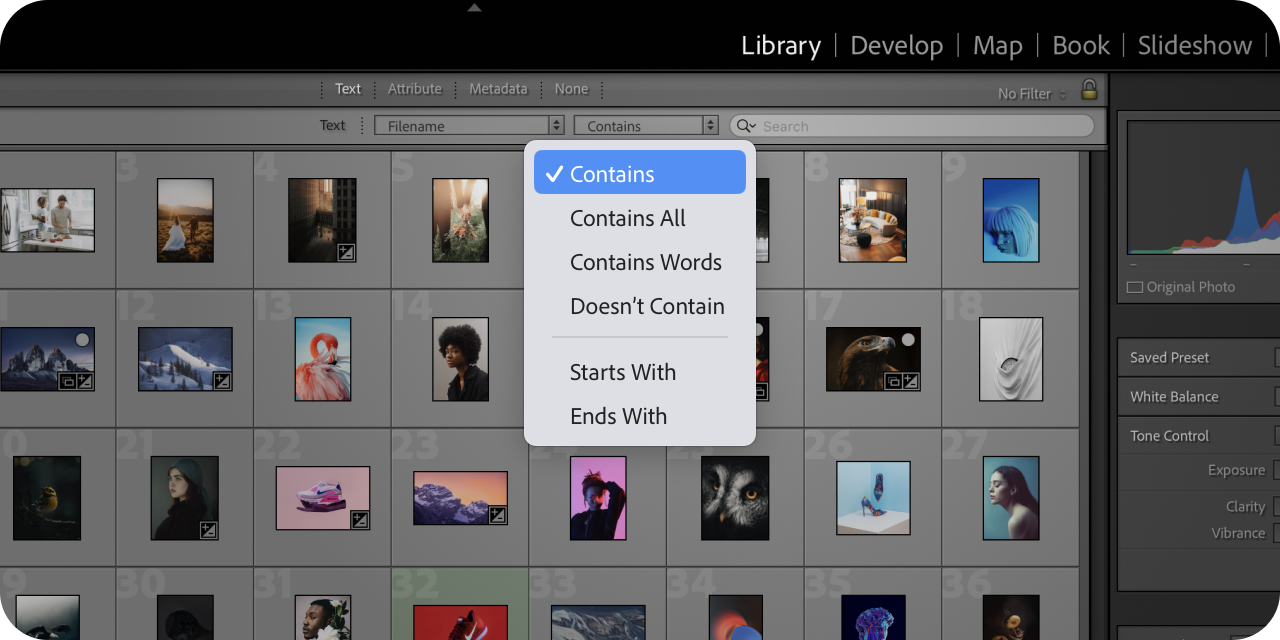
Find Assets in Lightroom
Open Lightroom and press "⌘F" (or go to "Library → Find" from the top menu).
Configure the search settings to "Filename" and "Contains".
Paste the copied filenames from Picflow into Lightroom's search box. Lightroom will automatically display all matching assets.
You can now flag or label those assets and begin editing/retouching as needed.
Why are there extra Images in Lightroom?
When using the "Contains" filter, Lightroom may retrieve files with similar sequences in the filenames. For example, searching for "IMG_1" may also bring up "IMG_1001". To avoid this, we recommend the following options:
Add the filename extension to the copy list in Picflow.
Update your filename convention "IMG_0001".
Learn more on Adobe: Find photos using the Library Filter panel
Questions or suggestions? Get in touch!
Was this helpful?
Still need help? Share an idea