Gallery Status
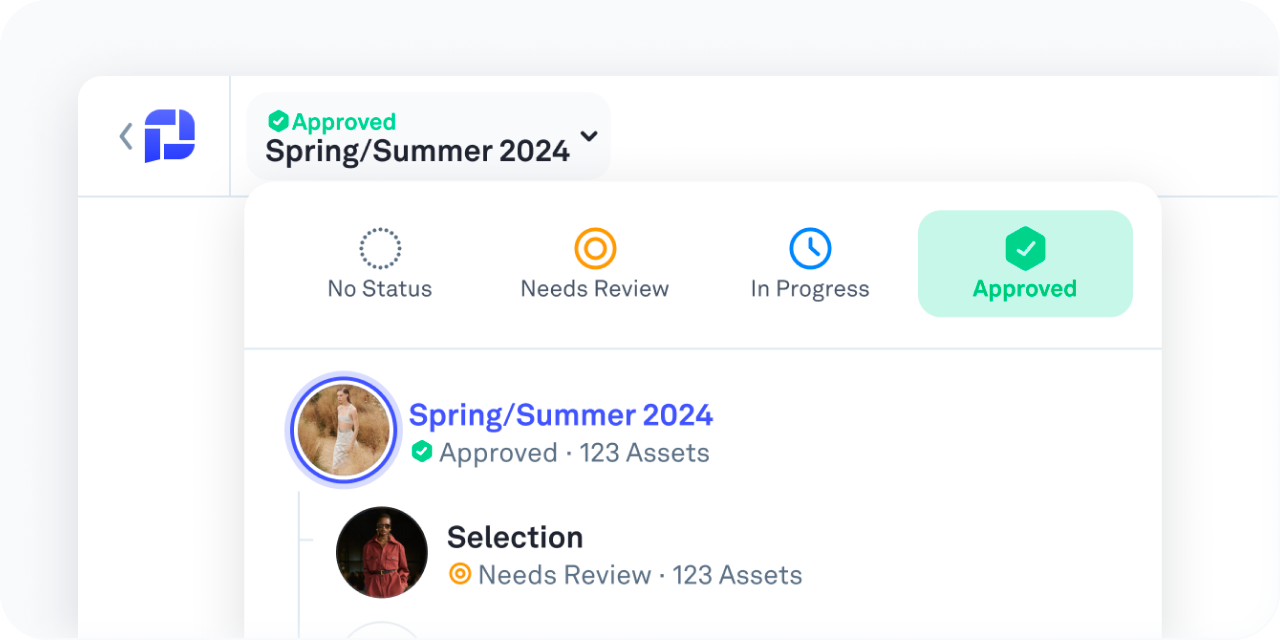
Gallery status marks the progress of a whole gallery, from No Status to Needs Review, In Progress and Approved, so your team and clients can see where a project stands.
What is gallery status?
Gallery status lets you and your team mark the current state of a gallery, whether it is just getting started, in progress or ready for final review. It is separate from the status of single assets. For that, see Asset status and approval limit.
How does it work?
Each gallery has one status. With Gallery Status switched on, the statuses are:
No Status
Needs Review
In Progress
Approved
With the switch off, the gallery only has No Status.
Turn On Gallery Status
Open the gallery and go to Settings → Collaboration.
Turn on Gallery Status.
New galleries start from your defaults in Settings → Presets. See Gallery presets and default settings. Other review tools are listed in Review and feedback options.
Change a Gallery's Status
On desktop, click the status selector in the gallery header and choose a status. Otherwise open Gallery Info and use the status button there.
People with review access also see the Gallery Status button in the header of the shared gallery.
Find Galleries by Status
Use the Gallery Status filter in search to list galleries with a given status.
Was this helpful?
Still need help? Share an idea