Lightroom Plugin
The Picflow plugin for Lightroom Classic connects your catalog to a Picflow workspace, so you can publish photos and videos to galleries from Lightroom. It works with Lightroom Classic only, not the cloud app.
The plugin works with Lightroom Classic only. Lightroom (the cloud app) doesn't support external plug-ins.
Install the Plugin
In Picflow, go to Settings → Integrations and click Download on the Lightroom Classic card.
Unzip the download. It contains a folder named
picflow.lrplugin.Move
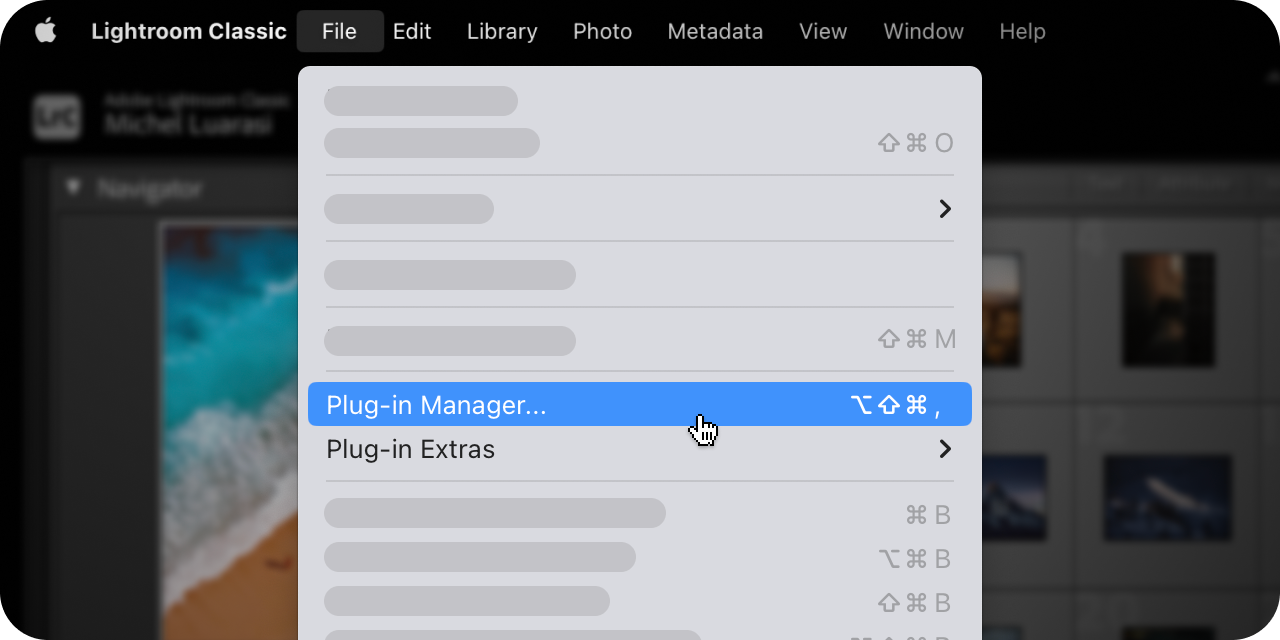
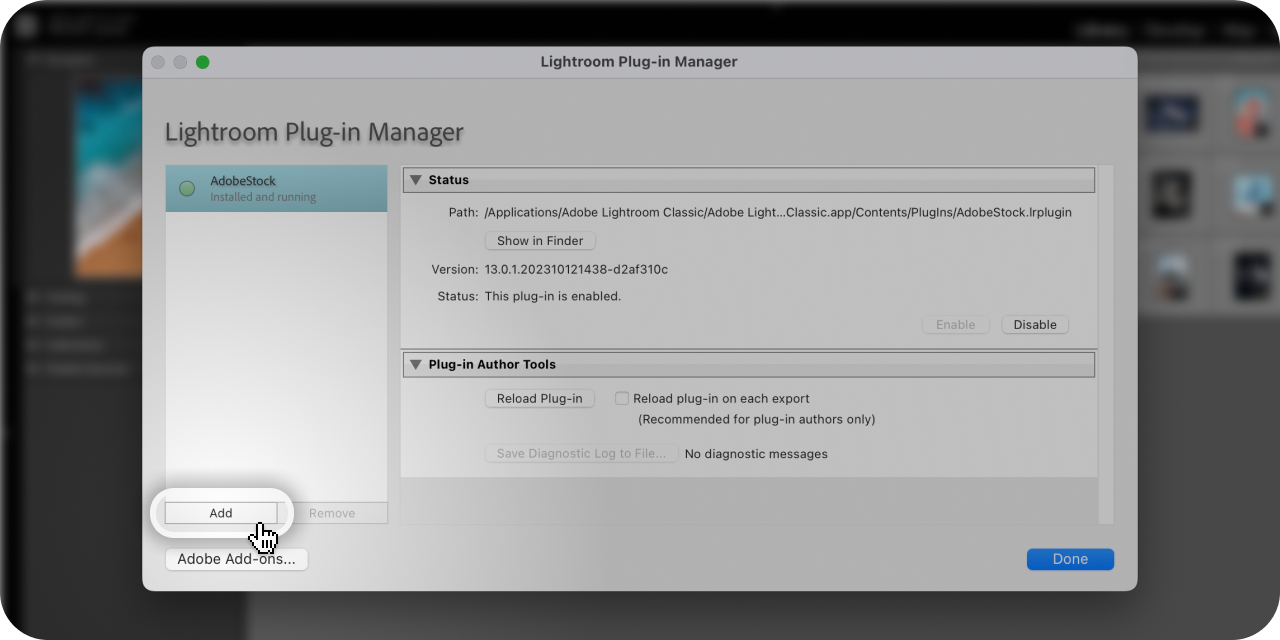
picflow.lrpluginto a permanent place, for example next to your Lightroom catalog. Don't move or delete it later.In Lightroom Classic, choose File → Plug-in Manager…, click Add, select
picflow.lrpluginand click Done.
Connect Your Workspace
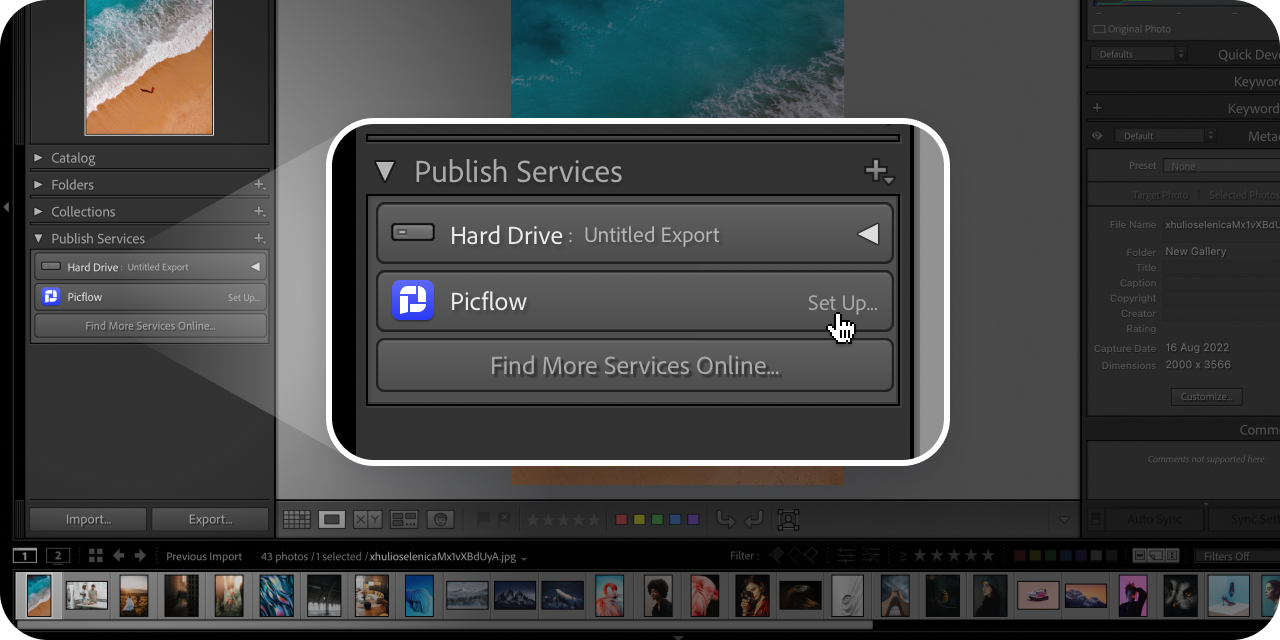
In the Library module, find the Picflow publish service in the left panel and click Set Up….
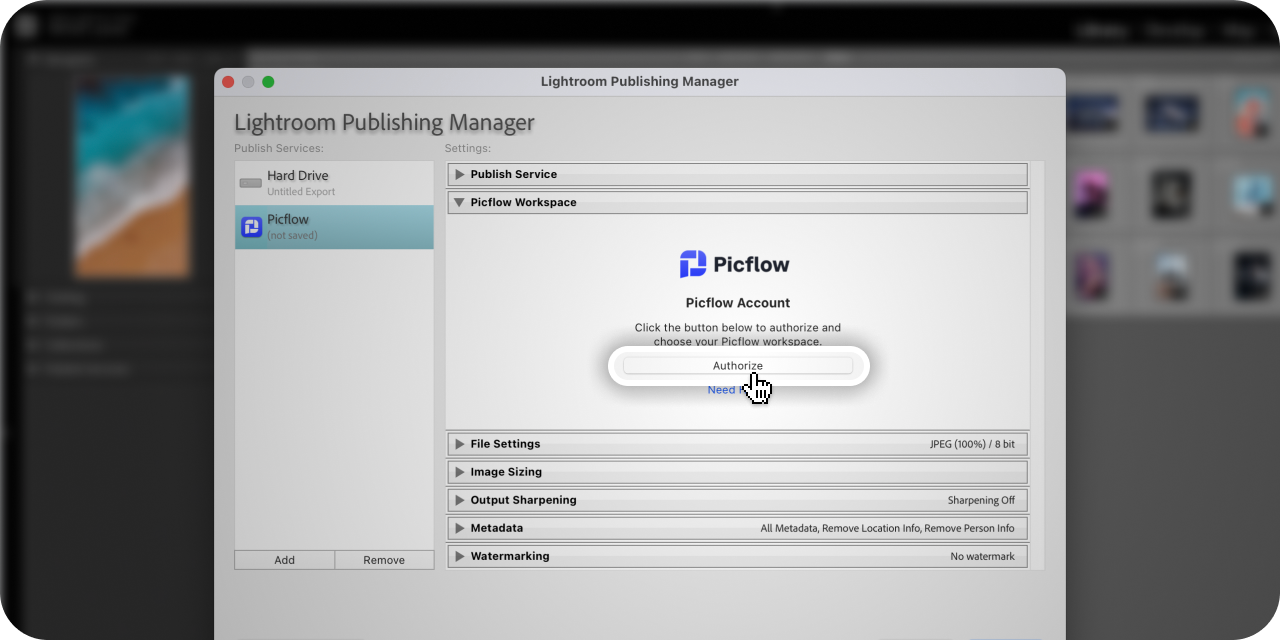
In the Publishing Manager, click Authorize. Your browser opens and asks you to log in to Picflow if needed.
Select the workspace and click Connect Lightroom. Picflow asks you to allow Lightroom to view, edit and permanently delete content in that workspace.
Go back to Lightroom, confirm the popup and click Save.
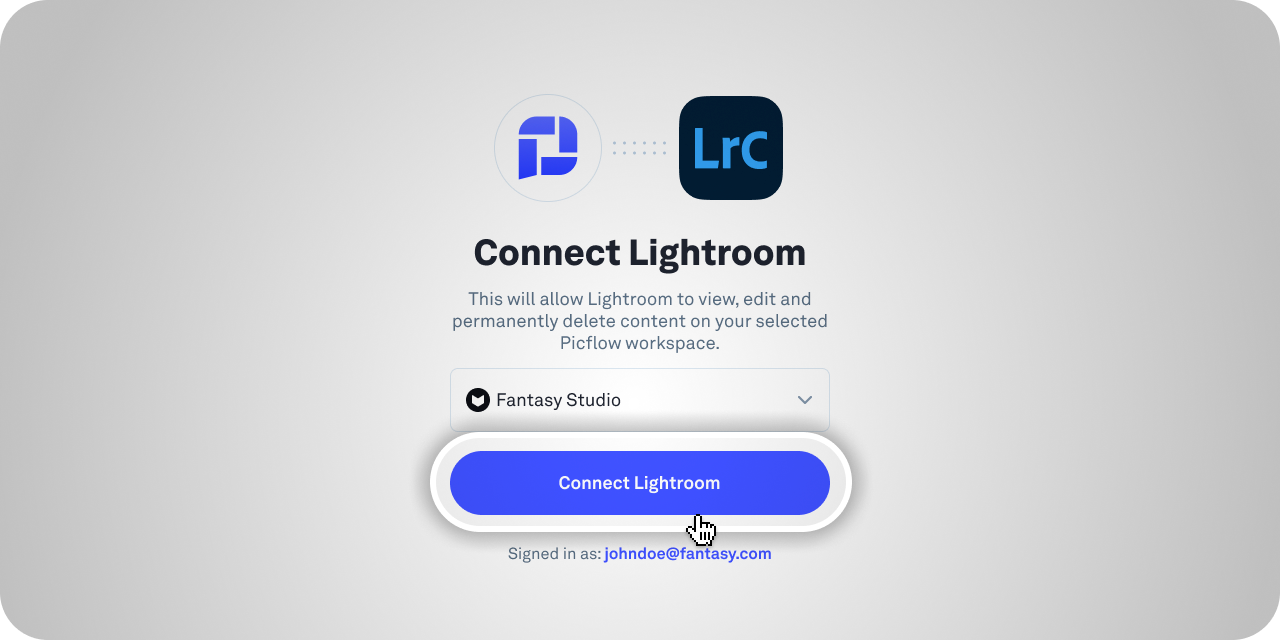
If the browser shows Wrong version, your plugin is outdated. See Troubleshooting below.
Plugin Settings
Right-click Picflow under Publish Services and choose Edit Settings… to change how photos are exported:
File Settings: file format and quality. Available formats: JPEG, AVIF, TIFF, PNG, DNG and Original.
Image Sizing: resize photos before they upload.
Output Sharpening: apply sharpening.
Metadata: include or exclude metadata.
File naming, export location and watermarking aren't available in this plugin.
Connect More Than One Workspace
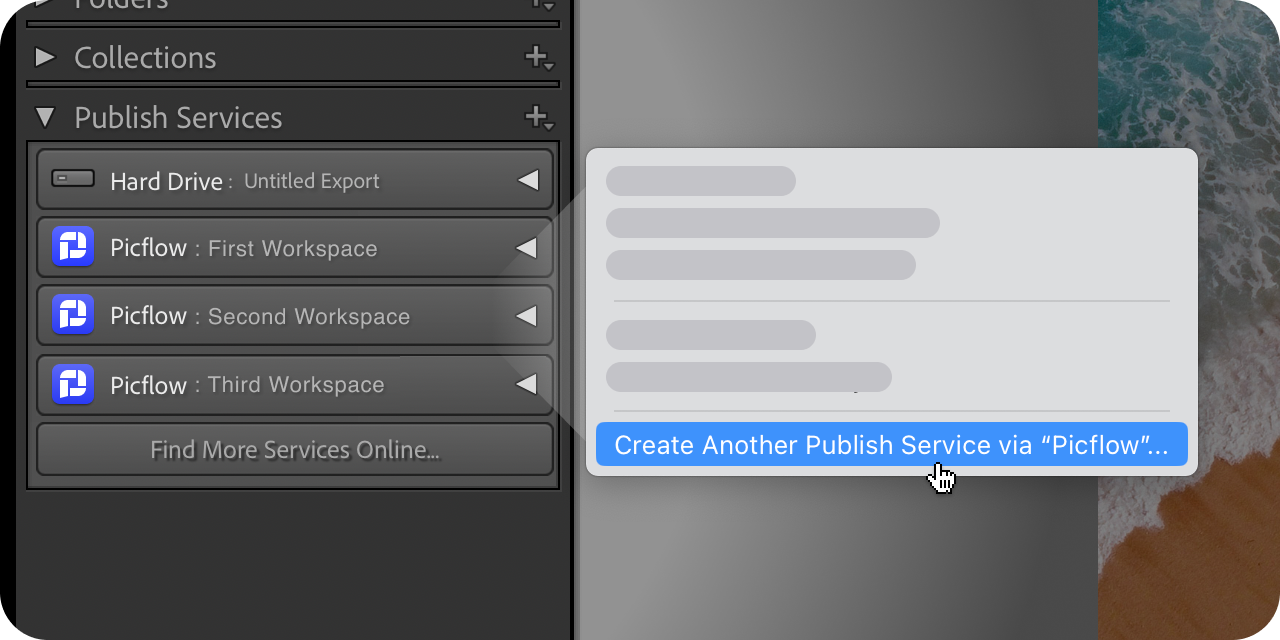
Right-click an existing Picflow publish service and choose Create Another Publish Service via "Picflow"…. Go through Authorize again and select the other workspace. You can't switch an existing service to a different workspace. Add a new service and remove the old one.
Update the Plugin
The plugin checks for updates when Lightroom starts. When one is available, click Update, then choose File → Plug-in Manager…, select Picflow and click Reload Plug-in (or restart Lightroom).
To check yourself, open File → Plug-in Manager…, select Picflow and click Check for update under Configuration. The same panel shows your current version.
Troubleshooting
The browser shows "Wrong version"
The browser shows "Wrong version"
Your plugin is outdated. Update it as described in Update the plugin above.
The automatic update fails
The automatic update fails
Download the plugin again from Settings → Integrations, replace the old picflow.lrplugin folder and click Reload Plug-in.
Plugin installed and connected? Learn how to create galleries, publish photos and keep them in sync.
Was this helpful?
Still need help? Share an idea