Set Up a Custom Domain
A custom domain serves your galleries from your own web address, for example gallery.yourcompany.com, instead of the default Picflow address. Add the DNS records Picflow shows you at your registrar or DNS host.
Paid Feature: Requires Picflow Pro or above.
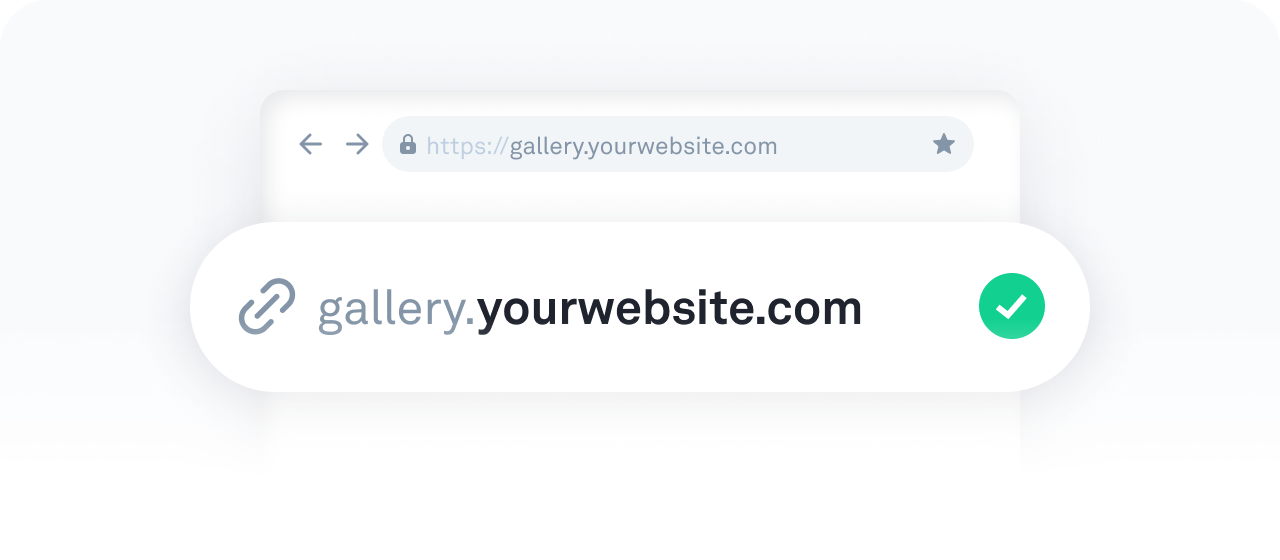
Root Domain or Subdomain
Subdomain (
gallery.yourcompany.com): recommended if your domain already hosts a website.Root domain (
yourcompany.com): some DNS providers don't allow a CNAME record on the root. If yours doesn't, use an ALIAS or ANAME record if available, or connect your domain to Cloudflare before you continue.
Connect Your Domain
Go to Settings → General.
Under URL & Domain, click Connect next to Custom Domain.
Enter your domain or subdomain and click Continue.
In the Configure Domain dialog, copy the records listed under Record, Host and Value.
Log in to your registrar or DNS host and add exactly those records.
Back in Picflow, click Verify & Save.
Picflow shows "Domain verified" when it works. If it shows "Your domain could not be verified", check the records and try again. DNS changes can take up to 24 hours.
Always use the values shown in your own dialog. Records from older guides or other workspaces may not work.
Until verification succeeds, the setting shows Not Verified with your domain. Click it to reopen the records.
Reconnect a Domain From the Old Setup
If your domain was connected before the platform migration, Custom Domain shows Requires Reconnection. Galleries on that domain can become unavailable until you reconnect.
Go to Settings → General and click Requires Reconnection.
In the Add Domain dialog, click the trash icon next to your domain to remove it.
Add the domain again and repeat the steps under Connect your domain with the new records.
Disconnect a Domain
Go to Settings → General.
Click Disconnect next to Custom Domain.
Confirm with Disconnect.
Disconnecting breaks existing share links that use your domain.
Need help?
If you've added the records as shown and verification still fails after 24 hours, contact your registrar first, then write to help@picflow.com or use the chat.
Related: Verified domain and join settings is a different feature: it lets colleagues with your email domain join your workspace.
Was this helpful?
Still need help? Share an idea