Image Analysis and Face Detection (Beta)
Image analysis adds smart tags, a short smart caption and visual properties to your images. Face detection finds faces and groups photos by person. Turn both on in Settings → Experiments.
Beta Notice: Image analysis and face detection are in beta and may change, including which plans include them.
Turn It On
Open Settings → Experiments.
Switch on Image Analysis (smart tags, smart caption and image properties) and/or Face Detection (face detection and person grouping).
Picflow reloads the page. The setting applies to your whole workspace. For more on experiments, see Experiments.
Only people who can manage workspace settings see Experiments. If you don't see it, the beta isn't available for your workspace yet.
While Picflow analyses an asset, it shows "Image analysis in progress…".
Where Results Show
Open an asset and select the Information tab in the side panel:
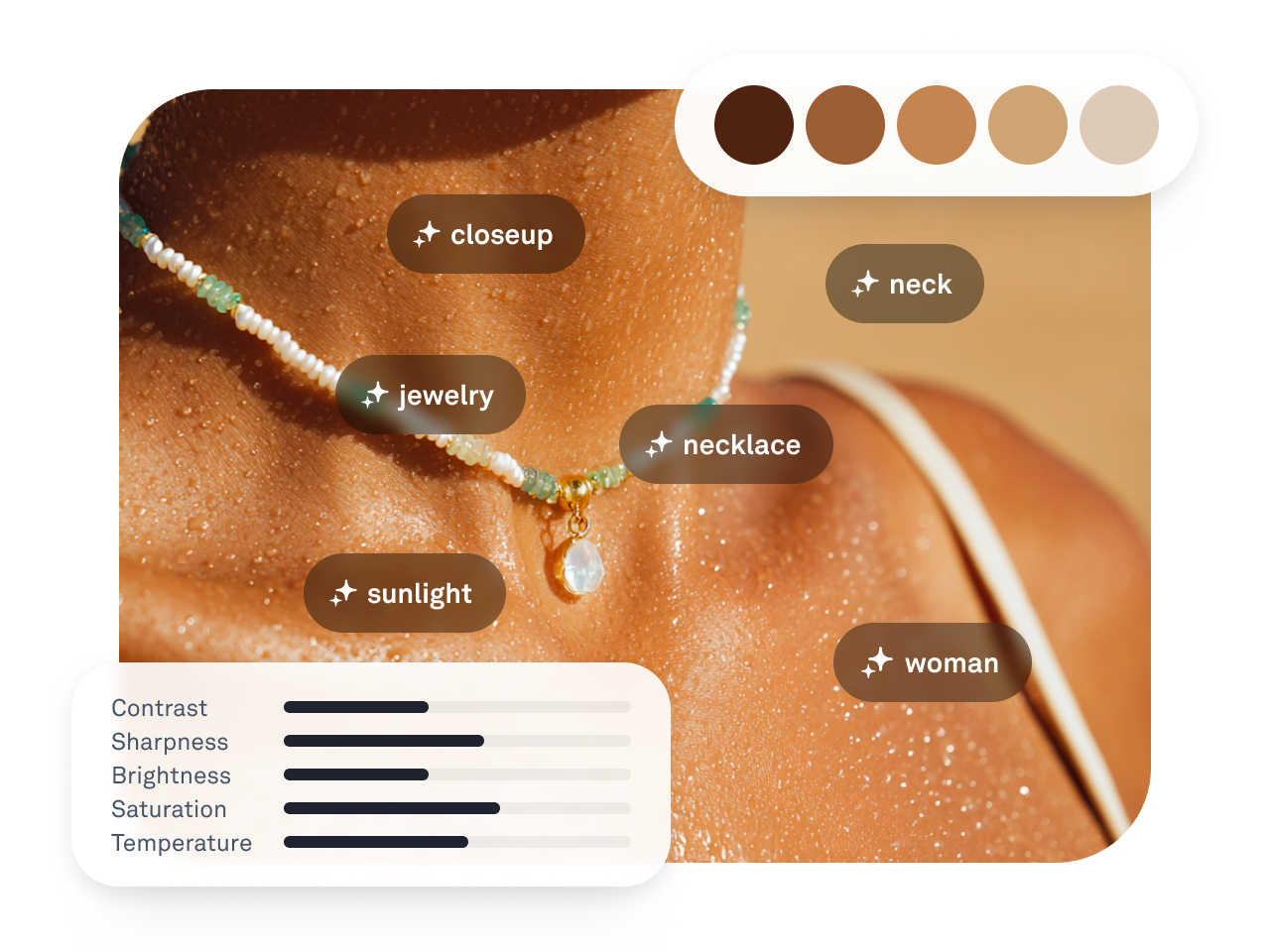
To remove a smart tag you don't want, use Delete Smart Tag. People with edit access can click a smart tag to search for assets with the same tag.
Smart tags are separate from the tags you create yourself. See Asset tags.
Search With Image Analysis
In Search Assets, use the Smart Tags filter and the brightness, contrast and sharpness filters.
Use the People search page to browse assets by person.
In a gallery's workflow view, use the Smart Tags filter in the sidebar.
Manage People
Face detection groups similar faces into persons. Persons stay Unnamed Person until you name them.
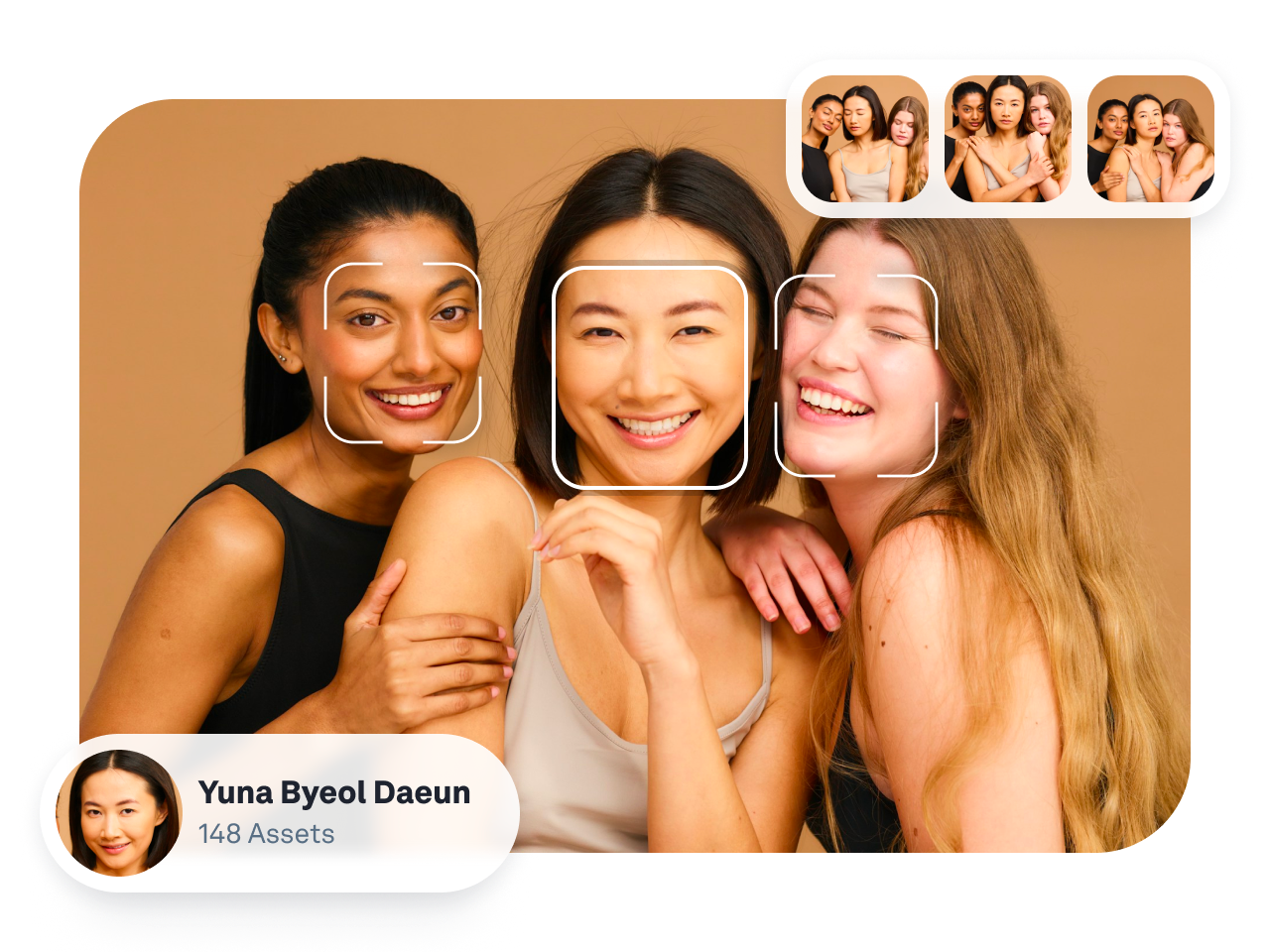
Open the menu on a face to:
Edit Person: rename the person. Delete Person is in the same dialog.
View Assets: see all assets with this person.
Assign Face: assign the face to an existing person (Choose Person) or create a new one (Create Person).
Unassign Face or Delete Face: remove a wrong match.
To combine two persons that are the same, use Merge Person on the person and choose the person to merge into. This can't be undone.
Was this helpful?
Still need help? Share an idea